
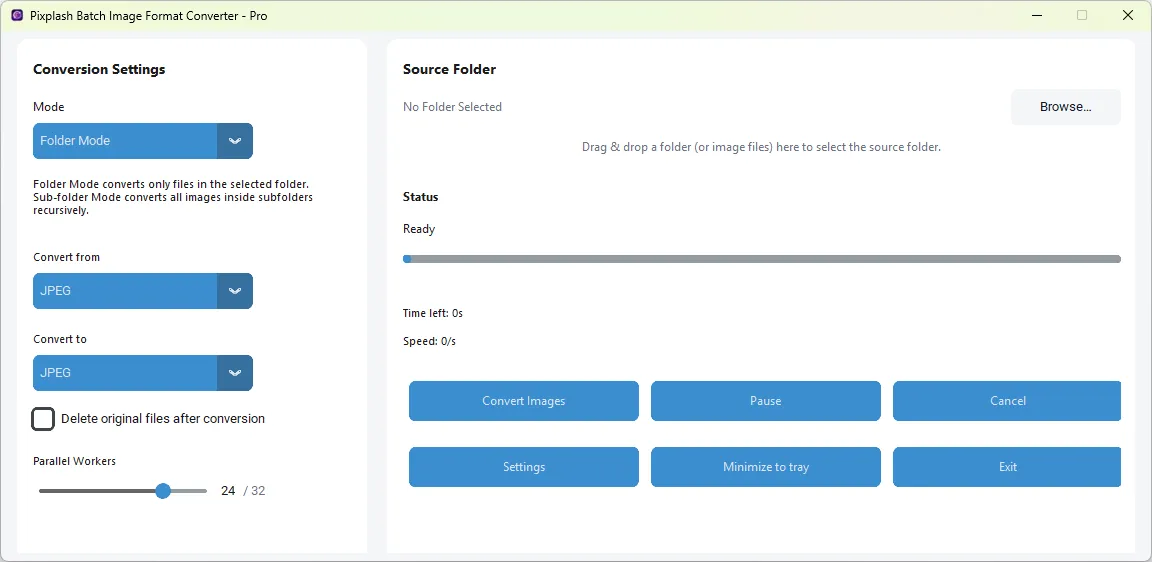
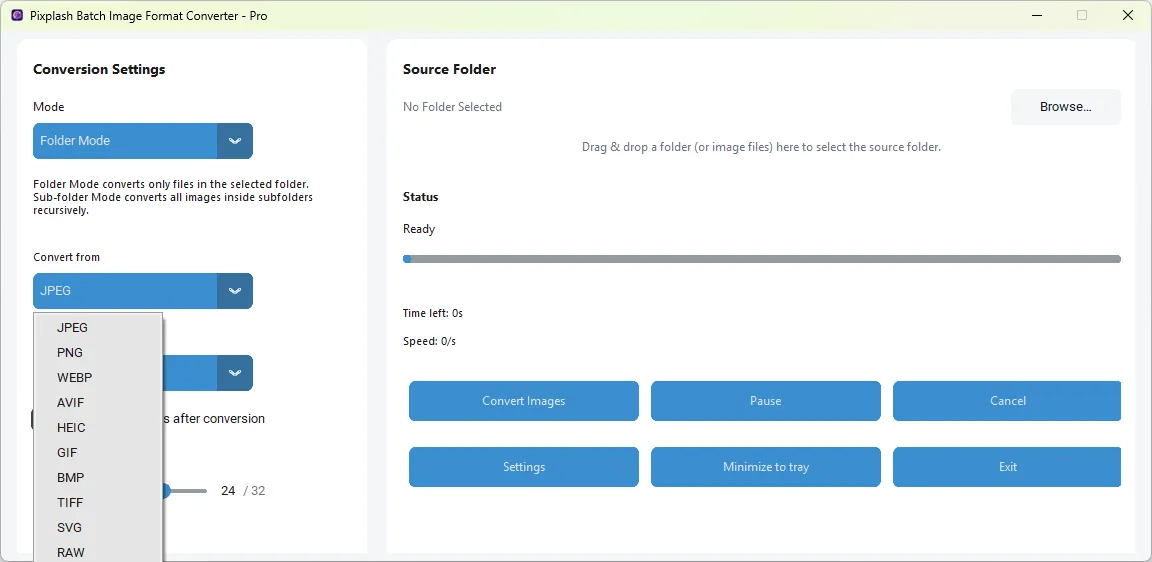
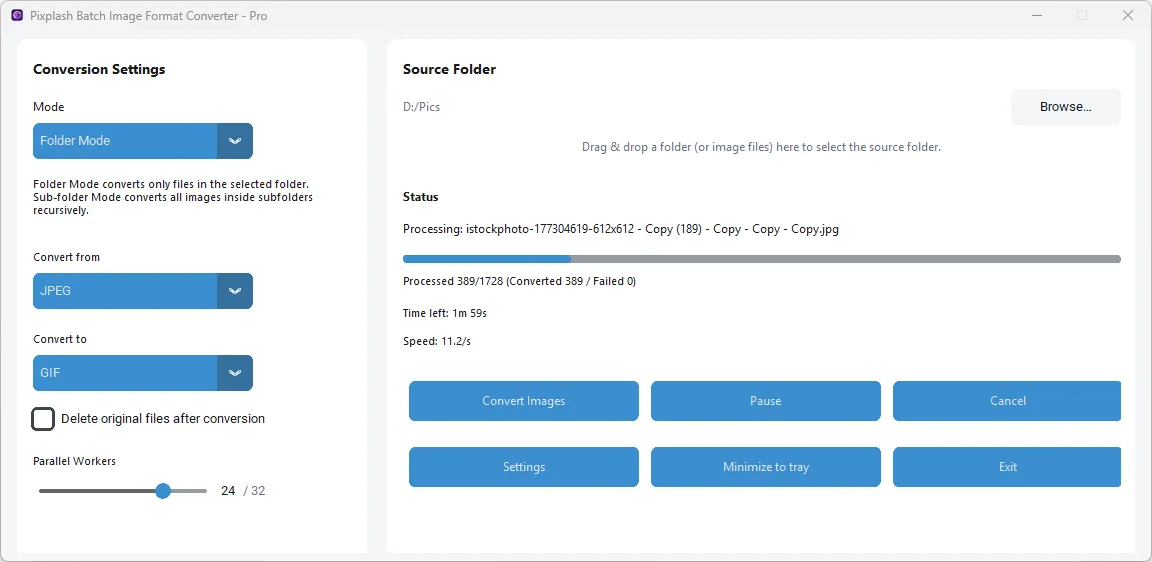
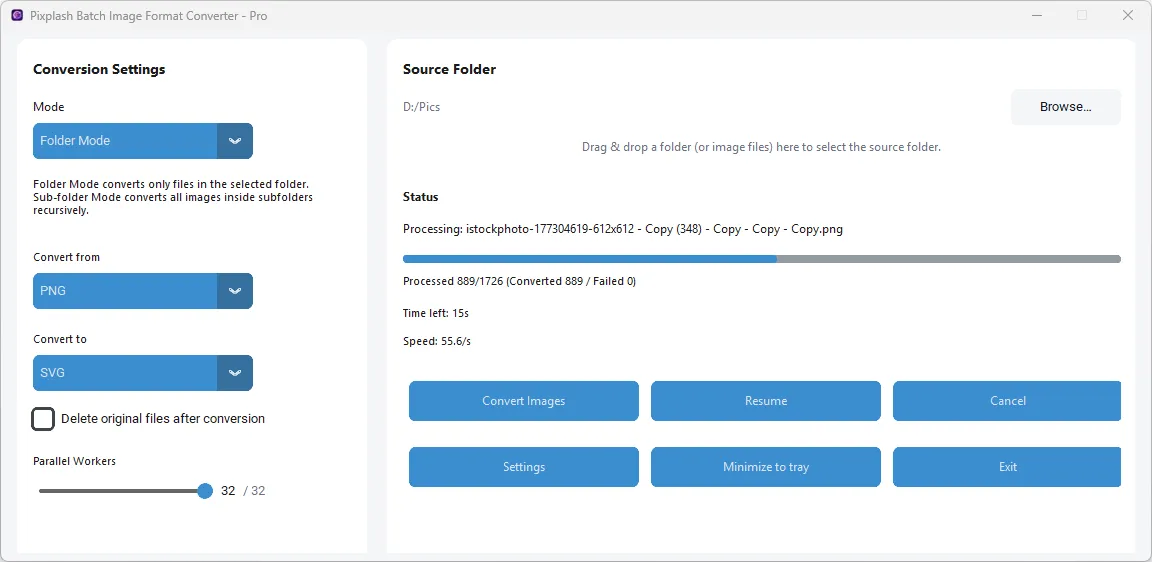
Supported Input Formats:
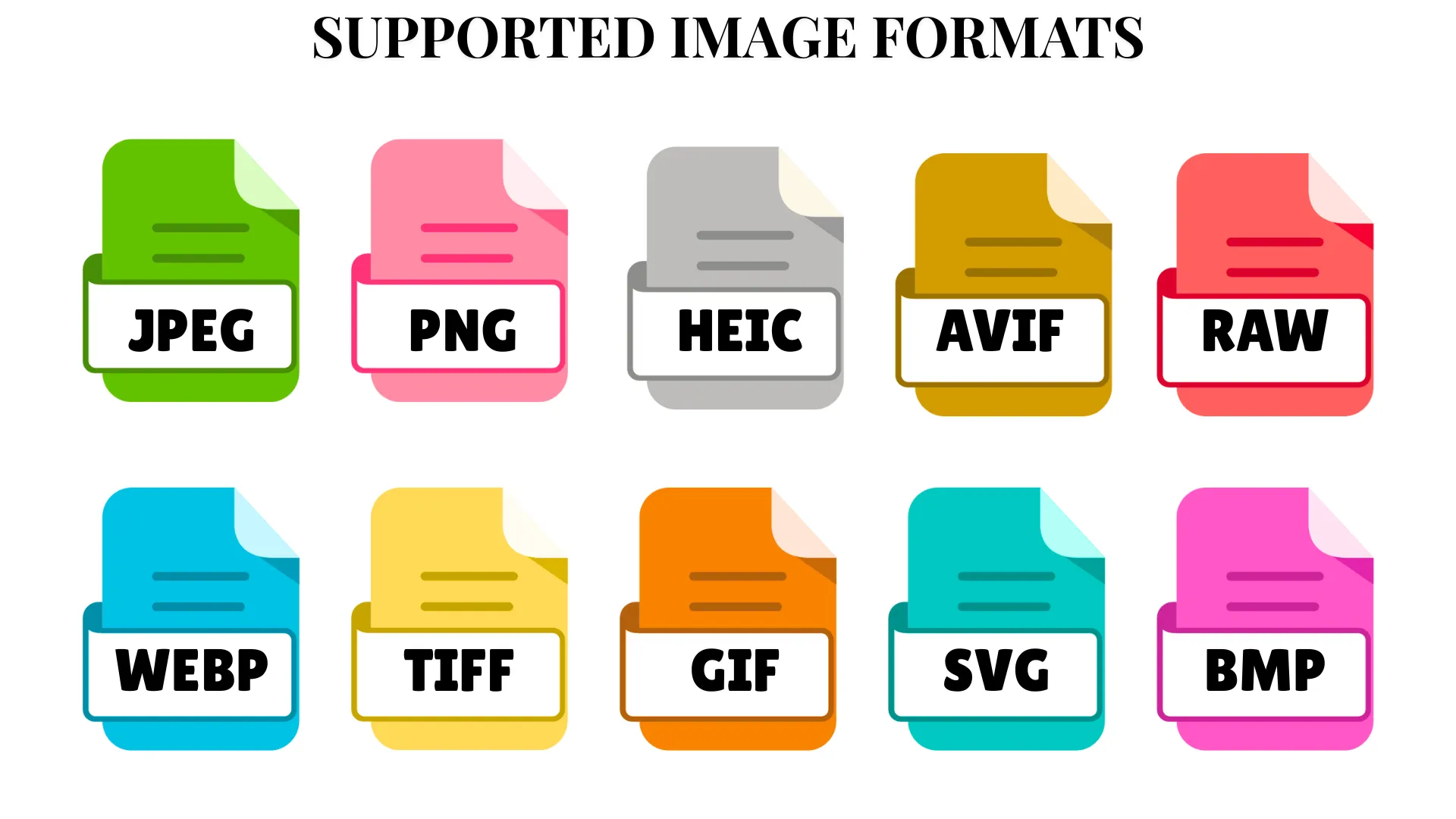
🔹 JPEG, PNG, WEBP, AVIF, HEIC, HEIF, GIF, BMP, TIFF, SVG, RAW
🔹 RAW formats: 3FR,
ARI,
ARW,
BAY,
CRW,
CR2,
CR3,
CAP,
DCS,
DCR,
DNG,
DRF,
EIP,
ERF,
FFF,
GPR,
IIQ,
K25,
KDC,
MDC,
MEF,
MOS,
MRW,
NEF,
NRW,
ORF,
PEF,
PTX,
PXN,
R3D,
RAF,
RAW,
RW2,
RWL,
RWZ,
SR2,
SRF,
SRW,
X3F,
RW1,
RWL2,
SRW2,
CS1,
STX,
TIFRAW,
BMQ,
RMOS
Supported Output Formats:
🔹 JPEG, PNG, WEBP, AVIF, HEIC, GIF, BMP, TIFF, SVG
Additional Features:
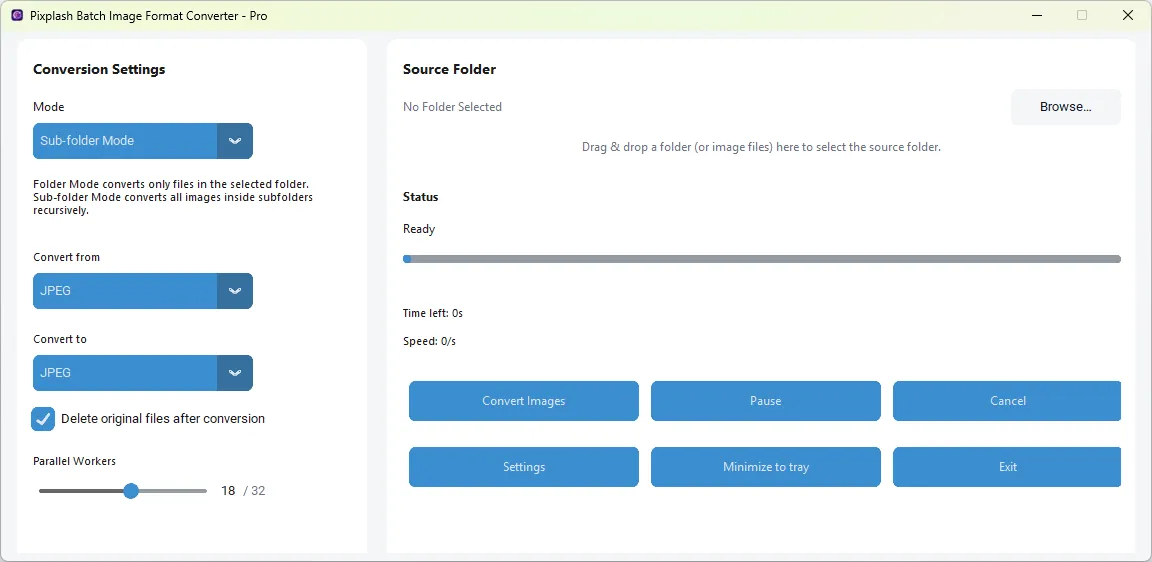
🔹 Nested Sub-Folder Auto Conversion - Convert files within each Sub-Folder recursively
🔹 Delete Original Files after Conversion
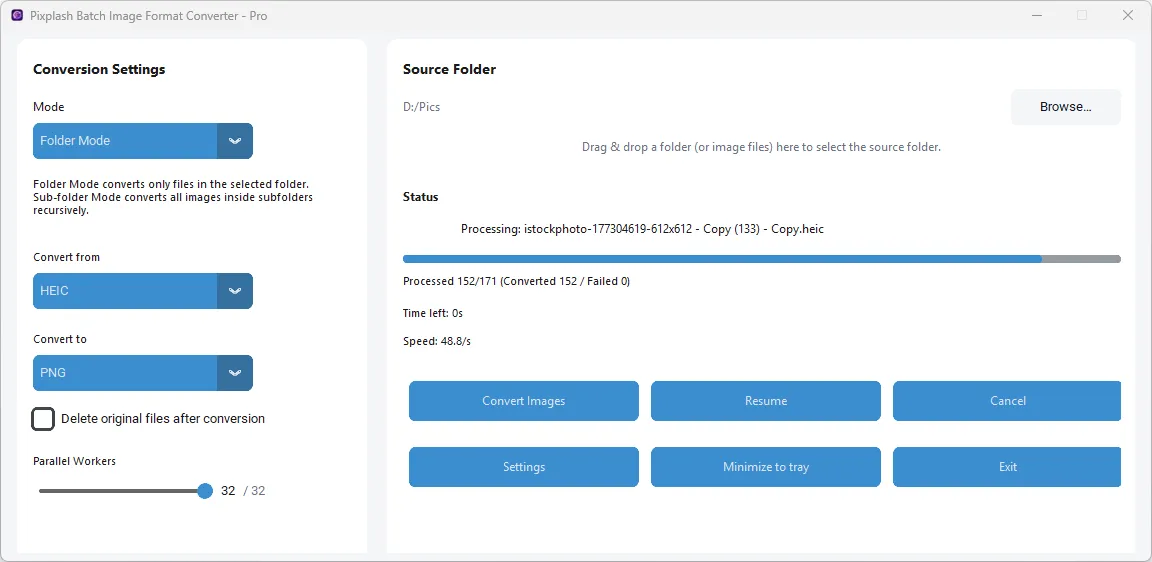
🔹 Auto | Manual Parallel Workers selection - Increase Or Decrease Conversion Speed - 32 Parallel Workers Max
🔹 Drag & Drop Folder
🔹 Live Conversion Speed | ETA
🔹 Cancel | Pause | Resume - Current Conversion
🔹 High-Volume Batch Stability
Performance:
🔹 Scales efficiently from low-end dual-core systems to high-performance CPUs with up to 32 parallel workers
🔹 If a single image is corrupted, unsupported, or fails to convert, only that task fails
🔹 Automatically scales worker count depending on CPU core availability
🔹 Ideal for both small batches and extremely large workloads (thousands to 100,000+ images)
Safety:
🔹 Safe Multi-Threaded Operation
🔹 No race conditions during read/write operations
🔹 Offline Processing - No internet connection required
🔹 Safe Delete to Recycle Bin - Optional Feature
🔹 Ideal for privacy-sensitive environments and restricted networks
🔹 Prevents file corruption even during high-speed batch conversions
Output Quality Settings:
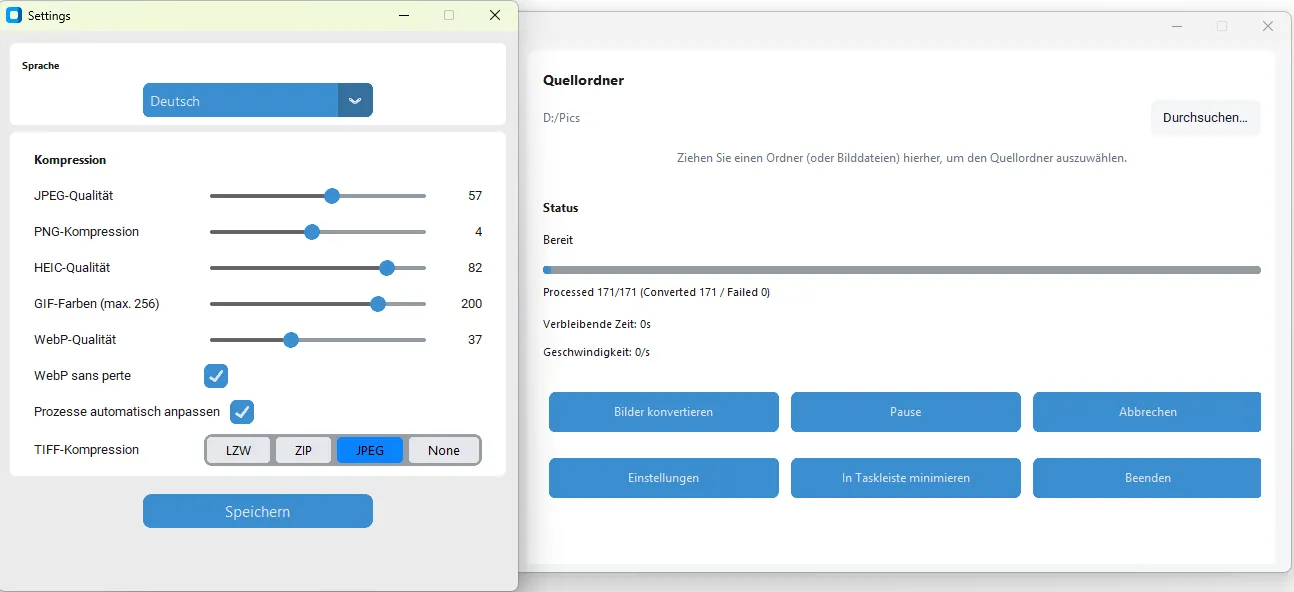
🔹 JPEG Quality - 1 To 100
🔹 PNG Compression - 0 To 9
🔹 WebP Quality - 1 To 100
🔹 WebP lossless
🔹 HEIC Quality - 1 To 100
🔹 GIF Colors - 2 To 256
🔹 Lossless/ Lossy WebP Output
🔹 TIFF Compression - LZW | ZIP | JPEG
Demo Videos
Watch detailed demo illustrating Pixplash’s capabilities and workflow.
Batch Conversion & Nested Sub-Folder Conversion
RAW Image Conversion
HEIC Image Conversion
Pixplash Image Converter – All Formats, One Tool
Pixplash is a powerful batch image converter supporting all major image formats, from legacy types to next-generation standards. Convert, optimize, and manage images for web, print, and professional workflows—fast and reliably.JPG - JPEG Conversion:
JPG and JPEG are the most widely used image formats for web, cameras, and applications. Pixplash enables fast, high-quality batch conversions.
Ideal for: File size reduction, lossless exports, web optimization, bulk photo conversion.
Conversions:
🔹 Convert JPG | JPEG to PNG
🔹 Convert JPG | JPEG to HEIC
🔹 Convert JPG | JPEG to AVIF
🔹 Convert JPG | JPEG to BMP
🔹 Convert JPG | JPEG to TIFF
🔹 Convert JPG | JPEG to SVG
🔹 Convert JPG | JPEG to GIF
🔹 Convert JPG | JPEG to WEBP
PNG Image Conversion:
PNG is preferred for transparency, UI assets, and lossless quality. Pixplash supports full-scale PNG batch processing.
Ideal for: Transparency handling, quality-preserving compression, cross-platform compatibility.
Conversions:
🔹 Convert PNG to JPG
🔹 Convert PNG to HEIC
🔹 Convert PNG to AVIF
🔹 Convert PNG to BMP
🔹 Convert PNG to TIFF
🔹 Convert PNG to SVG
🔹 Convert PNG to GIF
🔹 Convert PNG to WEBP
HEIC - HEIF Image Conversion:
Designed for iPhone and modern camera images, Pixplash makes HEIC / HEIF files fully compatible across platforms.
Ideal for: Windows compatibility, printing, editing, large HEIC library conversion.
Conversions:
🔹 Convert HEIC | HEIF to JPG
🔹 Convert HEIC | HEIF to PNG
🔹 Convert HEIC | HEIF to AVIF
🔹 Convert HEIC | HEIF to BMP
🔹 Convert HEIC | HEIF to TIFF
🔹 Convert HEIC | HEIF to SVG
🔹 Convert HEIC | HEIF to GIF
🔹 Convert HEIC | HEIF to WEBP
RAW Image Conversion:
Pixplash supports professional RAW camera formats for efficient batch conversion.
Ideal for: Professional photography workflows, previews, publishing, bulk processing.
Note: RAW files are input-only and cannot be generated as output.
Conversions:
🔹 Convert RAW to JPG
🔹 Convert RAW to PNG
🔹 Convert RAW to HEIC
🔹 Convert RAW to AVIF
🔹 Convert RAW to BMP
🔹 Convert RAW to TIFF
🔹 Convert RAW to SVG
🔹 Convert RAW to GIF
🔹 Convert RAW to WEBP
AVIF Image Conversion:
AVIF delivers superior compression with excellent image quality.
Ideal for: Backward compatibility, archival storage, modern image migration.
Conversions:
🔹 Convert AVIF to JPG
🔹 Convert AVIF to PNG
🔹 Convert AVIF to HEIC
🔹 Convert AVIF to BMP
🔹 Convert AVIF to TIFF
🔹 Convert AVIF to SVG
🔹 Convert AVIF to GIF
🔹 Convert AVIF to WEBP
BMP Image Conversion:
BMP is an uncompressed legacy format commonly found in older systems.
Ideal for: Reducing file size, modernizing legacy image libraries.
Conversions:
🔹 Convert BMP to JPG
🔹 Convert BMP to PNG
🔹 Convert BMP to HEIC
🔹 Convert BMP to AVIF
🔹 Convert BMP to TIFF
🔹 Convert BMP to SVG
🔹 Convert BMP to GIF
🔹 Convert BMP to WEBP
TIFF - TIF Image Conversion:
TIFF is widely used in print, scanning, and archival workflows
Ideal for: Web publishing, storage optimization, scanned document conversion.
Conversions:
🔹 Convert TIFF | TIF to JPG
🔹 Convert TIFF | TIF to PNG
🔹 Convert TIFF | TIF to HEIC
🔹 Convert TIFF | TIF to AVIF
🔹 Convert TIFF | TIF to BMP
🔹 Convert TIFF | TIF to SVG
🔹 Convert TIFF | TIF to GIF
🔹 Convert TIFF | TIF to WEBP
SVG Image Conversion:
SVG is a scalable vector format used for icons and illustrations
Ideal for: Rasterization, asset exports, multi-resolution image generation
Conversions:
🔹 Convert SVG to JPG
🔹 Convert SVG to PNG
🔹 Convert SVG to HEIC
🔹 Convert SVG to AVIF
🔹 Convert SVG to BMP
🔹 Convert SVG to SVG
🔹 Convert SVG to GIF
🔹 Convert SVG to WEBP
🔹 Convert SVG to TIFF
GIF Image Conversion:
Pixplash supports conversion of static GIF images
Note: Animated GIFs may be converted as static frames depending on output format
Conversions:
🔹 Convert GIF to JPG
🔹 Convert GIF to PNG
🔹 Convert GIF to HEIC
🔹 Convert GIF to AVIF
🔹 Convert GIF to BMP
🔹 Convert GIF to TIFF
🔹 Convert GIF to SVG
🔹 Convert GIF to WEBP
WEBP Image Conversion:
WEBP is optimized for fast-loading websites and modern browsers
Ideal for: Editing, printing, archiving, and batch website asset processing
Conversions:
🔹 Convert WEBP to JPG
🔹 Convert WEBP to PNG
🔹 Convert WEBP to HEIC
🔹 Convert WEBP to AVIF
🔹 Convert WEBP to BMP
🔹 Convert WEBP to TIFF
🔹 Convert WEBP to SVG
🔹 Convert WEBP to GIF
Supported RAW Image Formats
Pixplash Batch Image Converter offers extensive RAW image format support, enabling photographers and professionals to batch convert RAW files from a wide range of digital cameras into standard image formats for editing, sharing, archiving, and publishing.Pixplash currently supports 47+ RAW image formats originating from major camera manufacturers and professional imaging systems.
Broad Camera Brand Compatibility
Pixplash supports RAW formats from leading camera brands including Canon, Nikon, Sony, Fujifilm, Panasonic, Olympus, Pentax, Leica, Hasselblad, Phase One, Samsung, Sigma, and RED, among others.This ensures compatibility across consumer, enthusiast, and professional-grade camera ecosystems.
Supported RAW Formats (Input Only)
Pixplash supports the following RAW image formats as input:3FR, ARI, ARW, BAY, CRW, CR2, CR3, CAP, DCS, DCR, DNG, DRF, EIP, ERF, FFF, GPR, IIQ, K25, KDC, MDC, MEF, MOS, MRW, NEF, NRW, ORF, PEF, PTX, PXN, R3D, RAF, RAW, RW2, RWL, RWZ, SR2, SRF, SRW, X3F, RW1, RWL2, SRW2, CS1, STX, TIFRAW, BMQ, RMOS
Professional Photography Workflows
🔹 Import RAW files directly from cameras without prior conversion🔹 Batch convert entire photo shoots efficiently
🔹 Generate high-quality JPG, PNG, TIFF, HEIC, AVIF, WEBP, and other formats
Mixed Camera Environments
🔹 Ideal for studios using multiple camera brands🔹 Eliminates the need for brand-specific conversion tools
🔹 Consistent output across different RAW sources
High-Quality Output Generation
Pixplash extracts image data from RAW files with a focus on:🔹 Accurate color representation
🔹 Preservation of image detail
🔹 High-resolution output suitable for editing or publishing
🔹 Clean conversion without introducing compression artifacts unnecessarily
RAW as Input Only (Important Clarification)
🔹 RAW formats are camera-specific and proprietary🔹 Pixplash supports RAW files only as input
🔹 RAW output is not supported, by design
This approach aligns with industry best practices, as RAW formats are not intended to be generated artificially and vary significantly between manufacturers.
Ideal Use Cases
🔹 Photographers converting RAW files for client delivery🔹 Studios archiving RAW images into standard formats
🔹 Preparing RAW images for editing software that does not support native camera formats
🔹 Batch generating previews or lightweight versions from RAW originals
Reliability at Scale
Pixplash’s RAW processing engine is optimized for large-scale batch operations:🔹 Handles thousands of RAW files in a single session
🔹 Fault-isolated conversion ensures corrupted files do not stop the batch
🔹 Stable memory usage during extended RAW conversions
🔹 Suitable for unattended or overnight processing
Minimum System Requirements
These requirements allow Pixplash to run reliably for small to moderate batch conversions.🔹 Operating System - Windows 7 or Windows 8 (32-bit or 64-bit)
🔹 Processor (CPU) - 1 to 2 CPU cores
🔹 Memory (RAM) - 2 GB RAM
🔹 Storage - 500 MB free disk space
What to Expect on Minimum Specs
🔹 Best suited for small batches🔹 Slower conversion speed compared to modern systems
🔹 Limited parallel processing capability
🔹 Recommended for basic or occasional use
Recommended System Requirements
These specifications are recommended for optimal performance, especially when working with large image batches or RAW files.🔹 Operating System - Windows 10 or later (64-bit recommended)
🔹 Processor (CPU) - 4 or more CPU cores
🔹 Memory (RAM) - 4 GB RAM or more
🔹 Storage - Solid State Drive (SSD) recommended
🔹 Free Disk Space - At least 2 GB of free disk space
What to Expect on Recommended Specs
🔹 Fast batch conversion speeds🔹 Smooth multi-threaded execution
🔹 Stable performance during long sessions
🔹 Ideal for thousands to tens of thousands of images
How to Use Pixplash Batch Image Converter
Step 1: Select the Source Folder
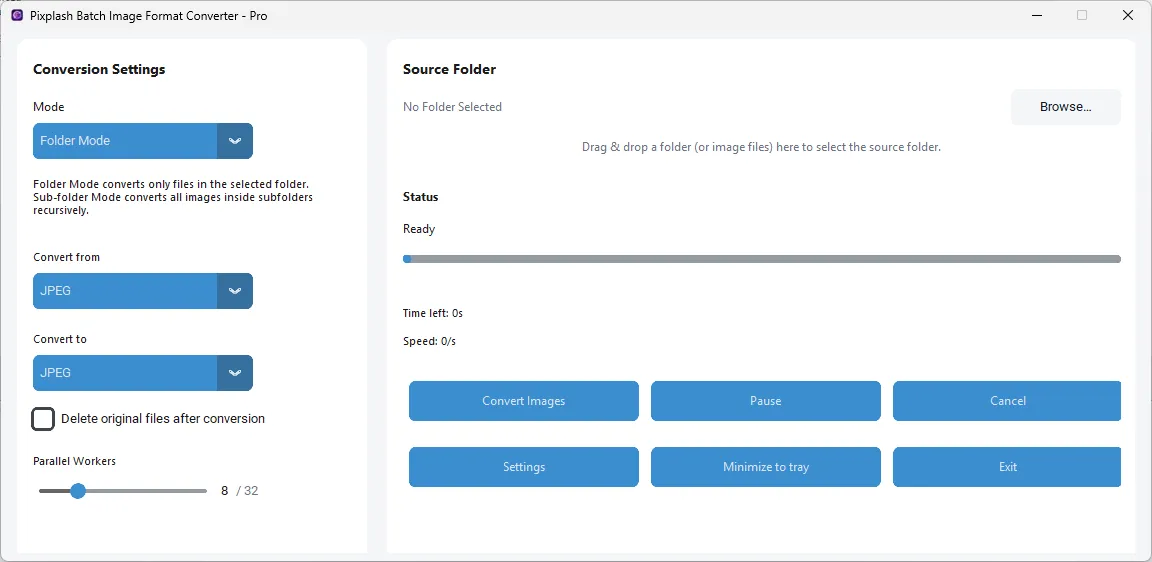
You can add images to Pixplash in two easy ways:🔹 Drag & Drop a folder directly into the application window
🔹 Or click Browse to manually select a folder from your system
Pixplash automatically scans the selected folder for supported image formats.
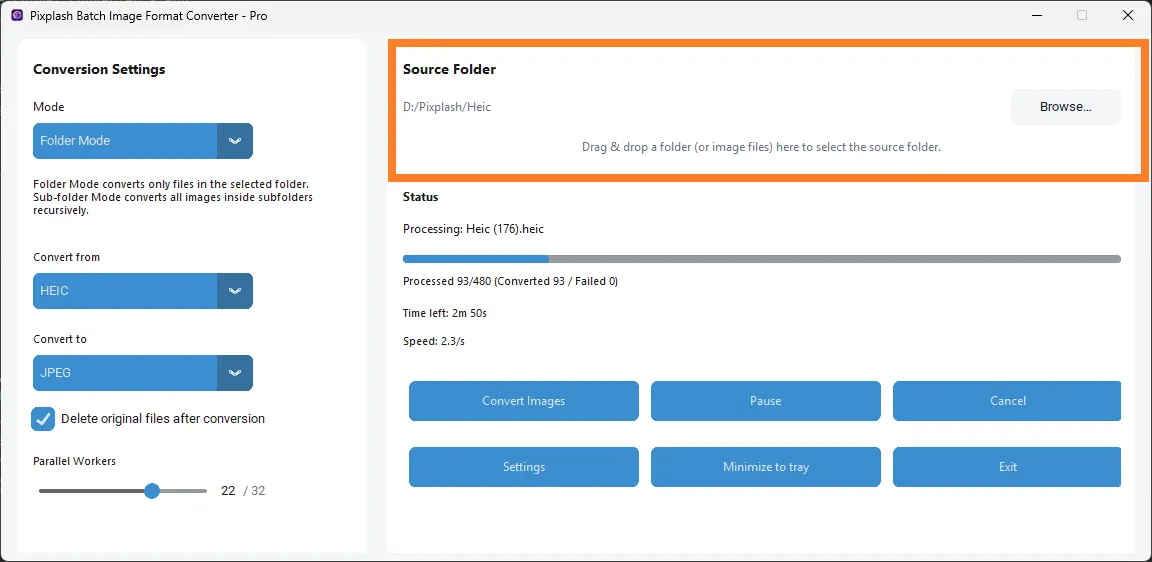
Step 2: Choose Folder or Sub-Folder Mode
Pixplash gives you control over how deeply it scans your folders:🔹 Folder Mode - Converts only the images located in the selected folder
🔹 Sub-Folder Mode - Recursively scans and converts images inside all sub-folders as well
This is ideal for large image libraries organized by categories or dates.
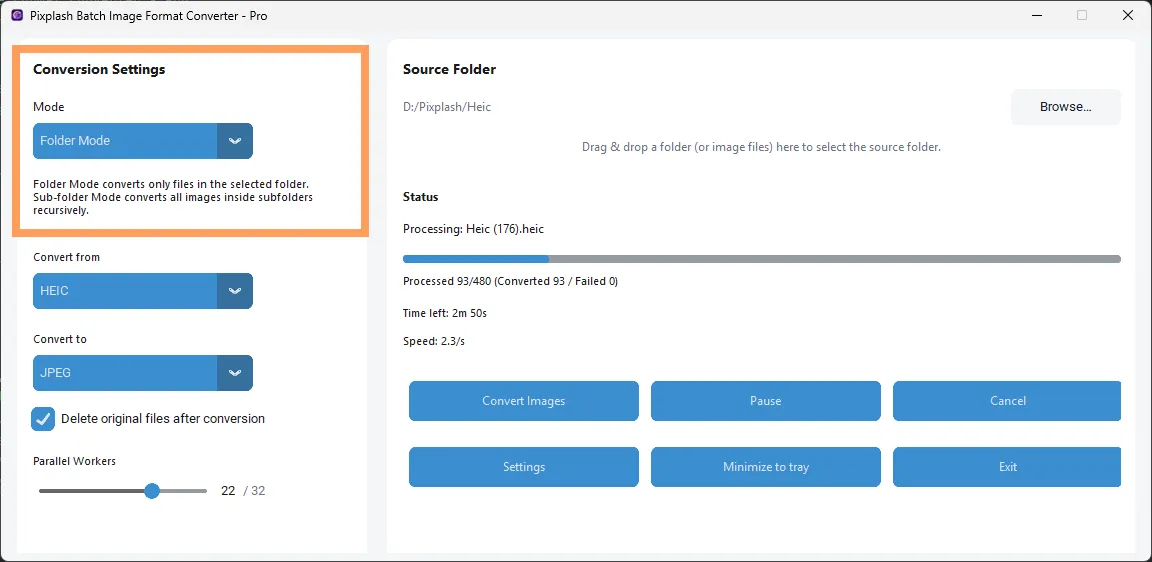
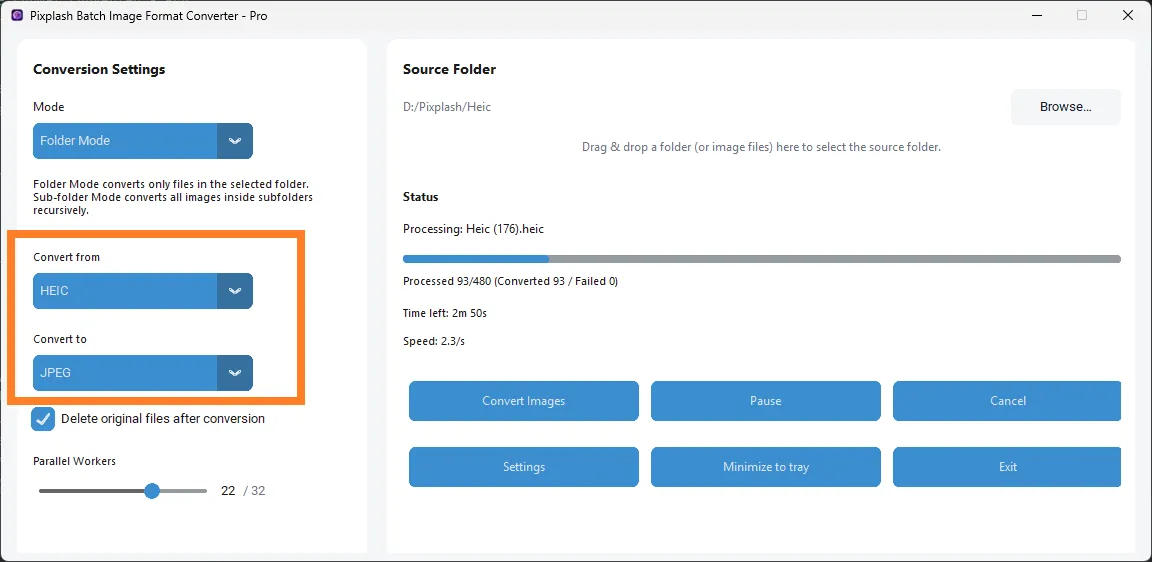
Step 3: Choose Conversion Format(s)
Select the desired output image format from the supported list.🔹 Convert all images to a single format (e.g., JPG To WEBP)
🔹 Choose modern formats like AVIF or HEIC for smaller file sizes
🔹 Select lossless formats like PNG or TIFF when quality is critical
Pixplash applies the selected format consistently across the batch.
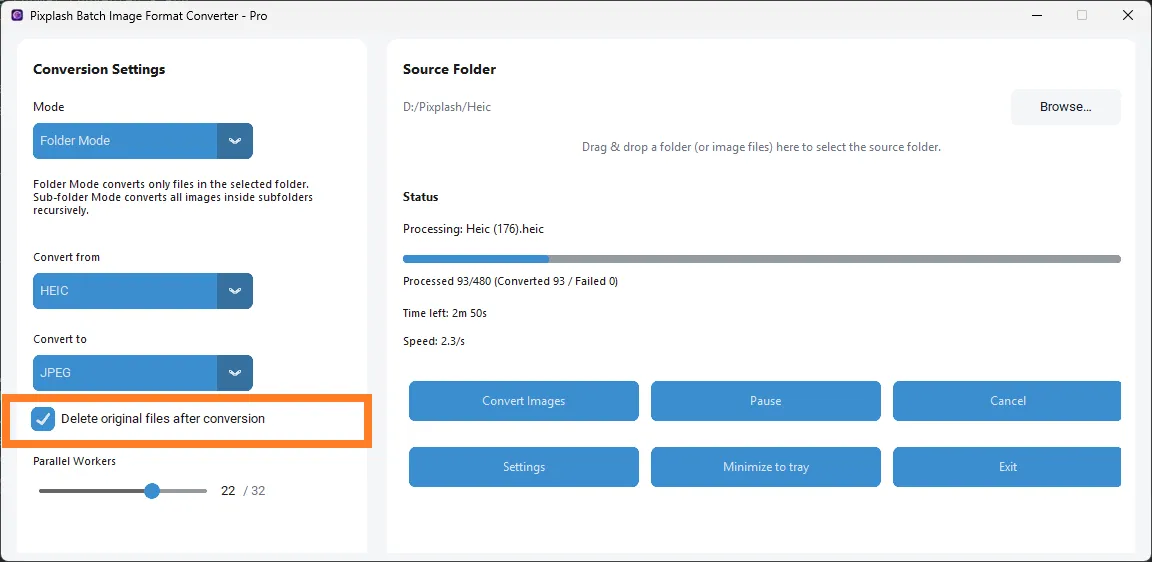
Step 4: Optional – Enable “Delete Originals”
This is an optional and user-controlled feature.🔹 When enabled, original files are moved to the Recycle Bin
🔹 Originals are not permanently deleted
🔹 Allows easy recovery if needed
This option helps free up disk space after successful conversion while maintaining safety.
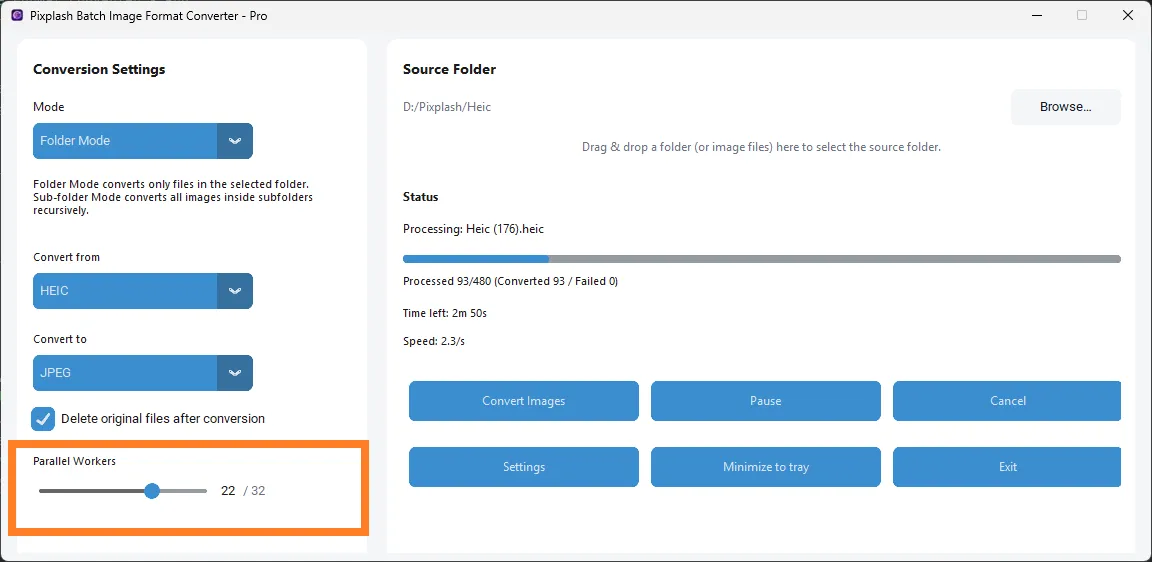
Step 5: Adjust Worker Thread Speed
Pixplash allows you to control how many CPU threads are used during conversion.🔹 Increase workers for maximum speed on powerful systems
🔹 Reduce workers to keep the system responsive
🔹 Auto-scale support ensures safe CPU usage
This flexibility is useful when running Pixplash alongside other applications.
Step 6: Set Output Quality
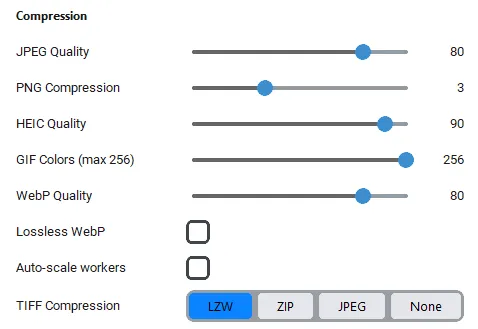
Control the balance between image quality and file size.🔹 Higher quality for print or archival use
🔹 Lower quality for web optimization and faster loading
🔹 Applies uniformly to all converted images
This ensures consistent results across the entire batch.
Step 7: Click Convert
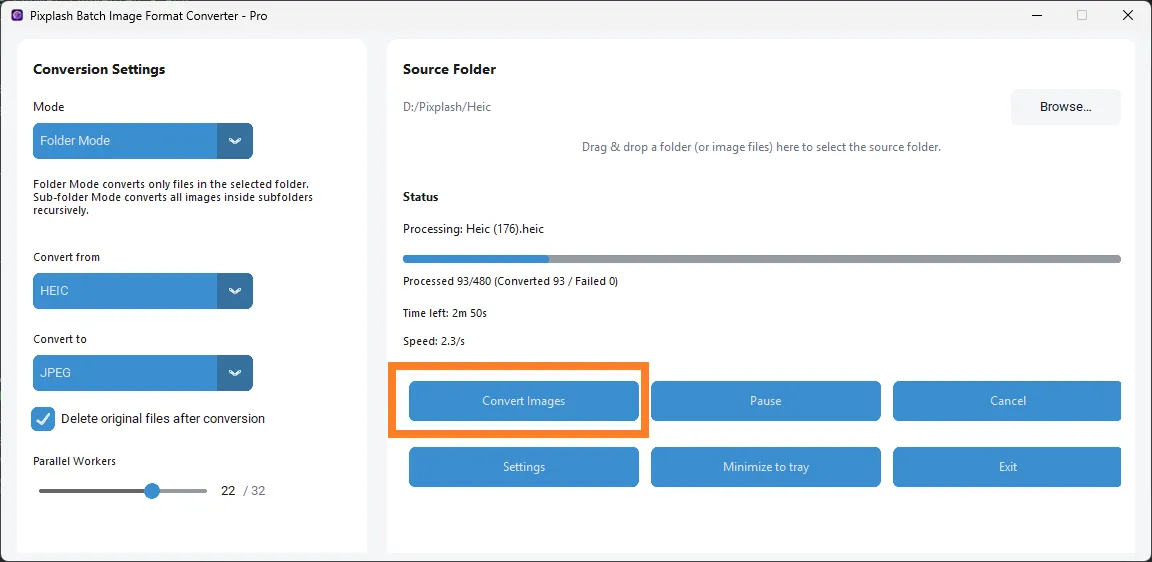
Once everything is set:🔹 Click the Convert button to start processing
🔹 Live progress and ETA are displayed in real time
🔹 Errors (if any) are logged without stopping the batch
You can safely let Pixplash run in the background or unattended.
What Happens Next
🔹 Converted images are saved to the selected output location🔹 Original folder structure is preserved (when applicable)
🔹 Any failed files are skipped and reported
Pixplash ensures a smooth, predictable, and safe conversion experience from start to finish.
How to Activate Pixplash via Gumroad
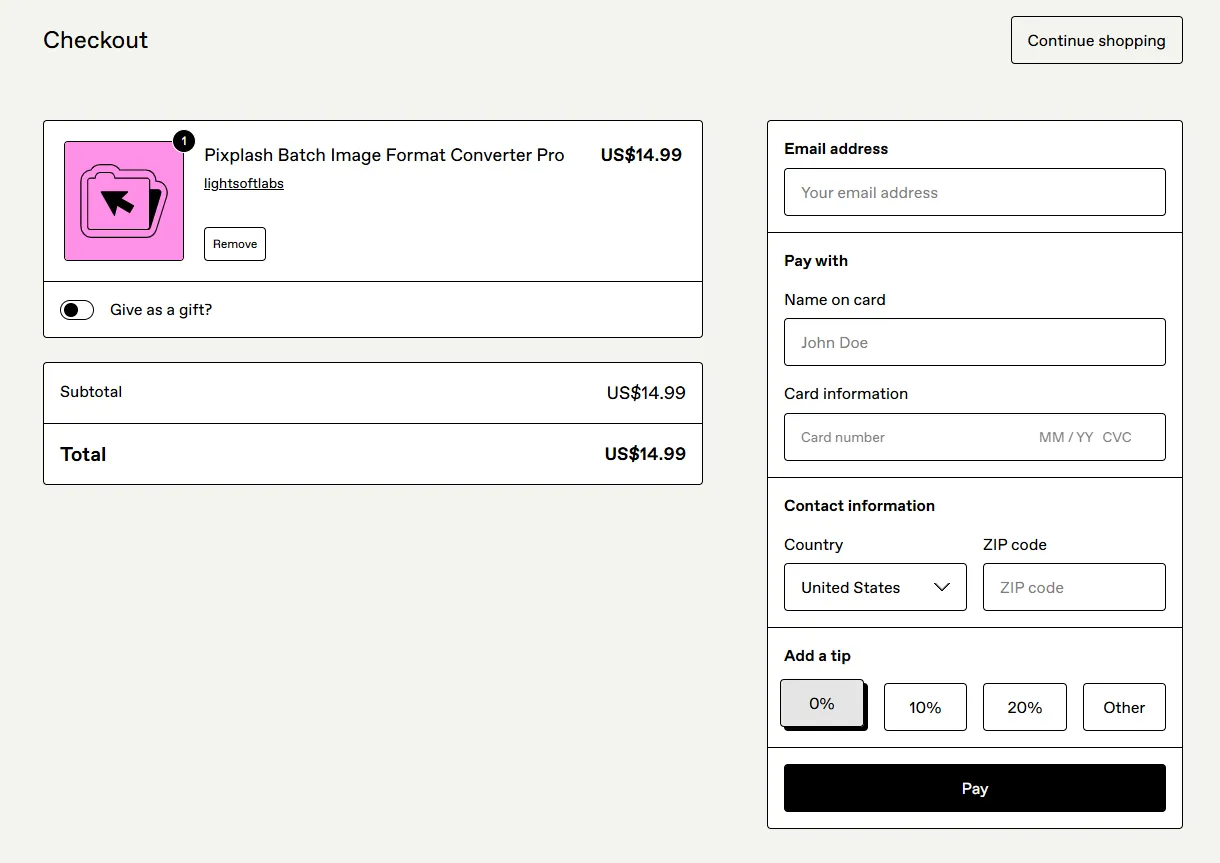
Pixplash Batch Image Converter – Pro is activated using a license key issued by Gumroad. The activation process is simple and takes only a few minutes.Step 1: Purchase and Download from Gumroad
🔹 Purchase Pixplash Batch Image Converter – Pro on Gumroad using your email address🔹 After successful payment, Gumroad:
- Sends a download link to your registered email ID
- Sends a unique license key to the same email ID
Important:
The license key is linked to the email address used during purchase.Download Pixplash
Step 2: Download and Open Pixplash
🔹 Download the Pixplash ZIP file from the Gumroad email or dashboard🔹 Unzip the downloaded file
🔹 Open the Pixplash Batch Image Format Converter – Pro application
Pixplash is a portable application, so no installation is required.
Step 3: Enter License Details
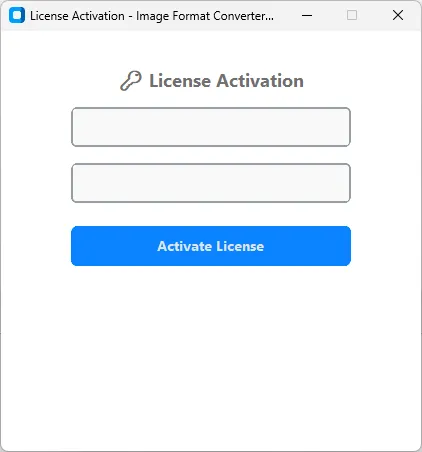
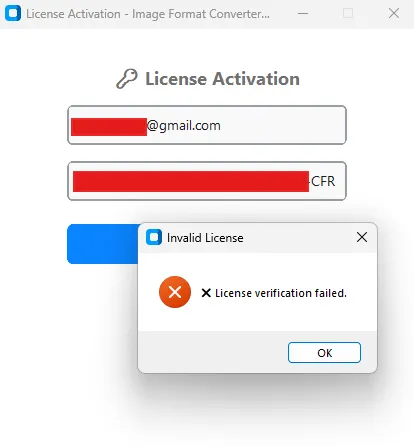
When the application starts, the License Activation Window will appear.🔹 Enter the Email ID used during the Gumroad purchase
🔹 Enter the License Key received from Gumroad
🔹 Ensure there are no extra spaces while copying and pasting
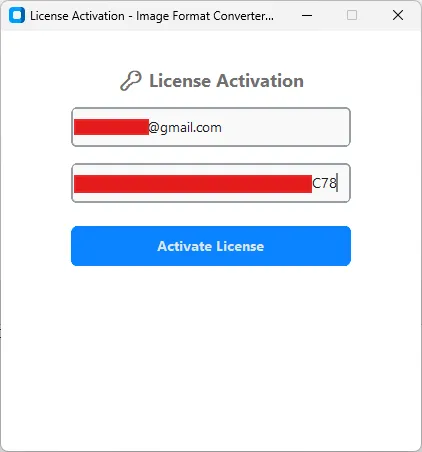
Step 4: Activate License
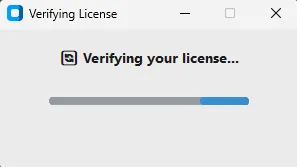
🔹 Click on the Activate License button🔹 Pixplash will open the License Verification Window
🔹 The application securely verifies:
- Your Email ID
- Your License Key
- Your purchase record from Gumroad
Step 5: License Verification Result
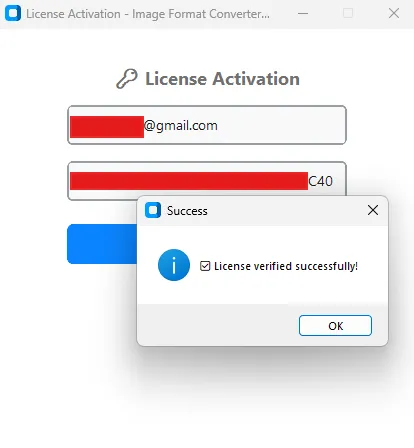
If Verification Succeeds:
🔹 The entered Email ID and License Key match your Gumroad purchase🔹 The license is activated successfully
🔹 Pixplash launches automatically and is ready for use
If Verification Fails:
License verification may fail if:🔹 The entered Email ID does not match the Gumroad purchase email
🔹 The License Key is incorrect or incomplete
🔹 There is no internet connectivity during activation
🔹 Activation is blocked by firewall or antivirus software
Troubleshooting Activation Issues
If activation fails, please check the following:🔹 Confirm the Email ID is exactly the same as used on Gumroad
🔹 Re-check the License Key for typing or copy–paste errors
🔹 Ensure your system has active internet access
🔹 Temporarily disable or whitelist Pixplash in antivirus/firewall software
If the issue still persists - Contact Support: support@lightsoftlabs.com
Include:
🔹 Your Gumroad purchase email ID🔹 The license key received
🔹 A brief description of the issue
After Successful Activation
🔹 Pixplash launches normally🔹 No repeated activation is required for regular use
🔹 All Pro features become fully accessible
Pixplash at a Glance
Pixplash Batch Image Format Converter is a portable and handy converter which supports 10 Input formats: JPG, PNG, SVG, BMP, TIFF, HEIC, RAW, AVIF, GIF and WEBP and supports 9 Output formats: JPG, PNG, SVG, BMP, TIFF, HEIC, AVIF, GIF and WEBP.It also supports 47 RAW Digital Camera image formats and converts these RAW images in batches to any of the 9 output formats.
Pixplash effectively converts very large number of images, be it 1k images or 10k images or 100k images. Pixplash converts them with ease and it also provides a live ETA when the conversion is going to be completed.
Pixplash offers three major features with it → Automatic Nested Sub Folder Conversion, Delete Original Files and Parallel Workers Selection.
🔹 Automatic Nested Sub Folder Conversion — You dont have to waste your time by selecting the images under each sub folders manually. Just select "Sub Folder Mode" in the app window and pixplash automatically scans each and every image under each subfolder and converts them to the desired format.
🔹 Delete Original Files — This allows users to automatically delete the original images which have been converted by pixplash. This lets you save time by auto deleting the unwanted original files after conversion instead of manually selecting all the images and deleting them. This feature sends the original files to Recycle Bin, so you dont have to worry wondering whether the images were hard deleted from you computer.
🔹 Parallel Workers Allocation Selection— Pixplash allows you to choose the number of parallel workers that work at a time. Maximum parallel workers which can be selected is 32 — which means 32 cores work at a time which increases the speed of conversion. Imagine it like 32 people working on a single task at a time (vs) 1 person working on the same task at a time.
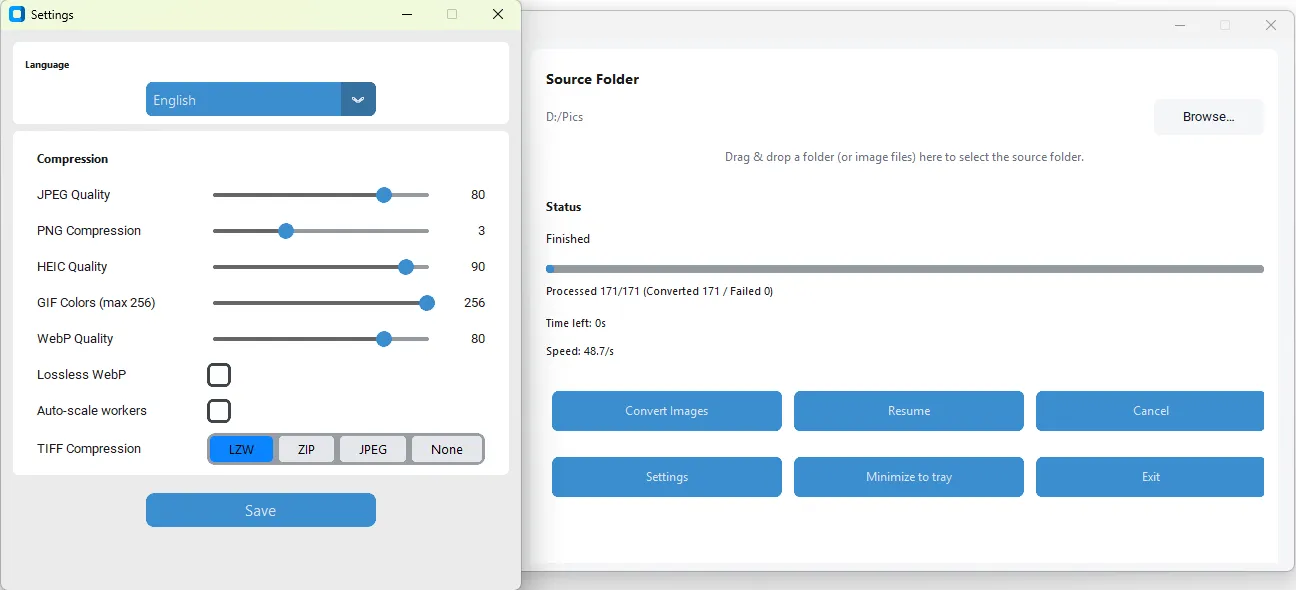
Pixplash shows live Processed, Converted and Failed count of the image files. The Converted count shows the number of images that are converted till the current time and the Failed count shows the number of images that have failed conversion.
Failing of conversion can happen due to corrupted image files, unsupported or partially supported formats, incomplete downloads, insufficient system memory or disk space, file permission restrictions, locked files in use by other applications, invalid file headers or metadata, extremely large image dimensions, or unexpected interruptions during the conversion process.
Pixplash is implemented with Drag & Drop which allows you select the folder by just dragging and dropping a image file from the specific folder into the app. Users can also manually select the folder by clicking the "Browse" button.
Pixplash is implemented with Pause/Resume and Cancel Buttons which can come handy while converting large number of images. The Cancel button instantly cancels the current conversion almost immediately.
Users can also minimize the application to the system tray during the conversion or when the application is idle. This allows the application to be easily accessible from the tray without closing the entire application if it is idle.
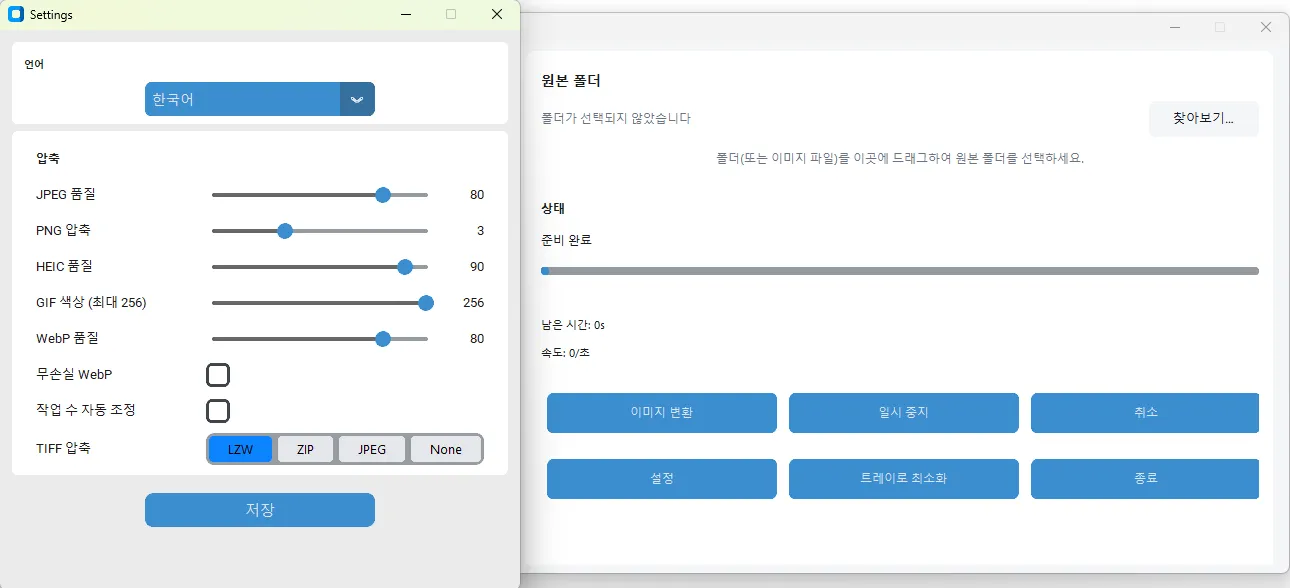
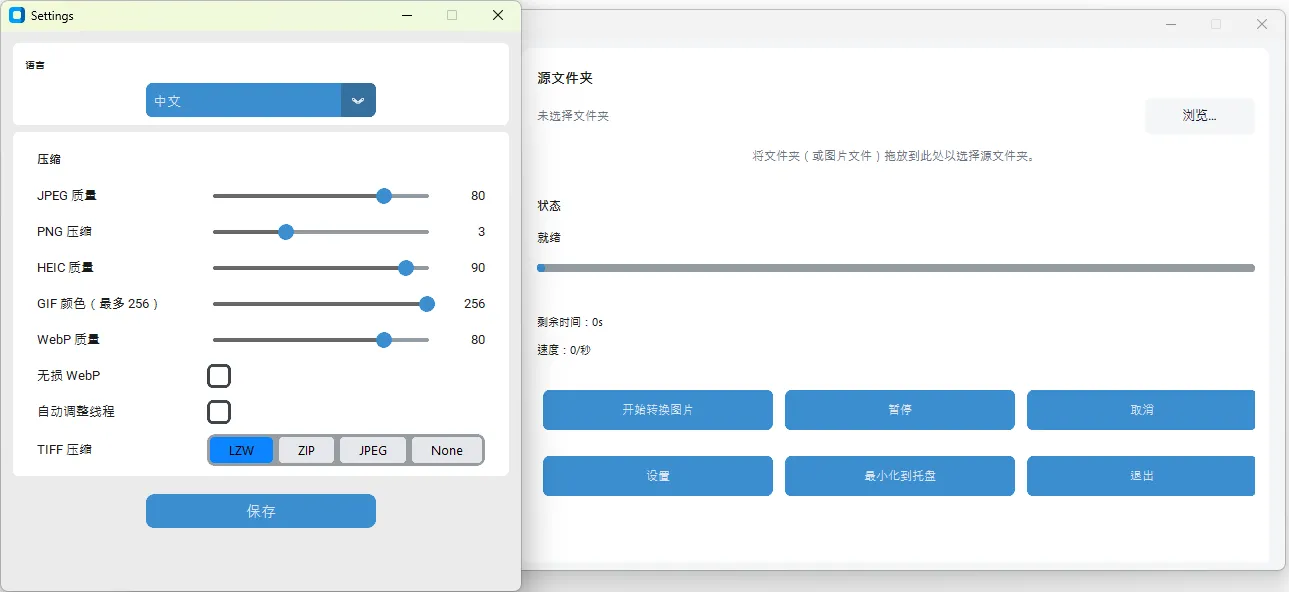
Pixplash is implemented with multiple Output settings. You can choose the output quality of JPEG between 1 and 100, PNG Compression between 1 and 9, HEIC Quality between 1 and 100, GIF Colors between 1 and 256, WebP Quality between 1 and 100, Lossless / Lossy WebP output toggle, Auto Scale workers toggle and TIFF Compression settings — LZW, ZIP and JPEG.
Auto-Scale Workers setting can be used to automatically select the best number of parallel workers while conversion based on your system's specifications.
Global Language Support
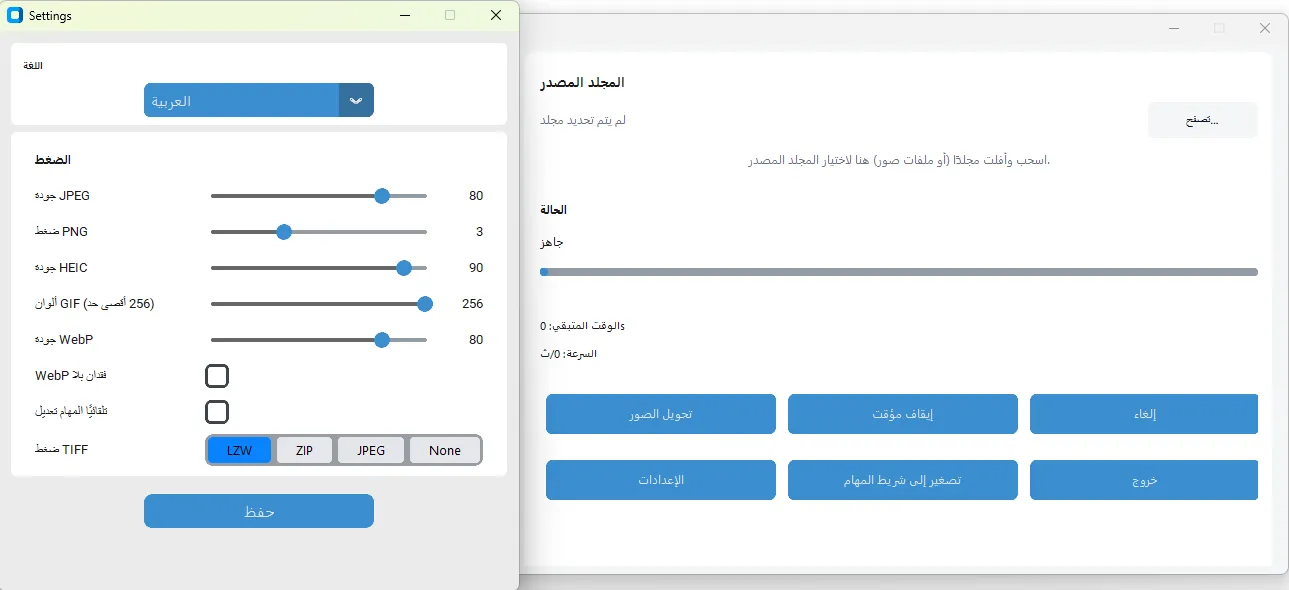
Pixplash is implemented with 19 Global Languages -
🔹English
🔹Español (Spanish)
🔹 Français (French)
🔹Deutsch (German)
🔹Italiano (Italian)
🔹Português (Portuguese)
🔹Русский (Russian)
🔹български (Bulgarian)
🔹Magyar (Hungarian)
🔹Afrikaans
🔹हिन्दी (Hindi)
🔹日本語 (Japanese)
🔹한국어 (Korean)
🔹Ελληνικά (Greek)
🔹Bahasa Indonesia
🔹Română (Romanian)
🔹العربية (Arabic)
🔹ქართული (Georgian)
🔹中文 (Chinese)
Security & Privacy
Pixplash is a fully offline image processing application. All conversions are executed locally on your machine, ensuring complete data ownership and privacy. Pixplash does not upload, scan, log, or transmit your images. A minimal, encrypted HTTPS request is used only to validate your license—no personal or file-related information is included.
App Info
🔹 App Name - Pixplash Batch Image Format Converter - Pro
🔹 Current Version - v1.0.5
🔹 Release Date - 25.12.2025
🔹 Download Size - 60mb
🔹 Platform - Windows
🔹 Category - Image Converter
🔹 Developer - LightSoft Labs